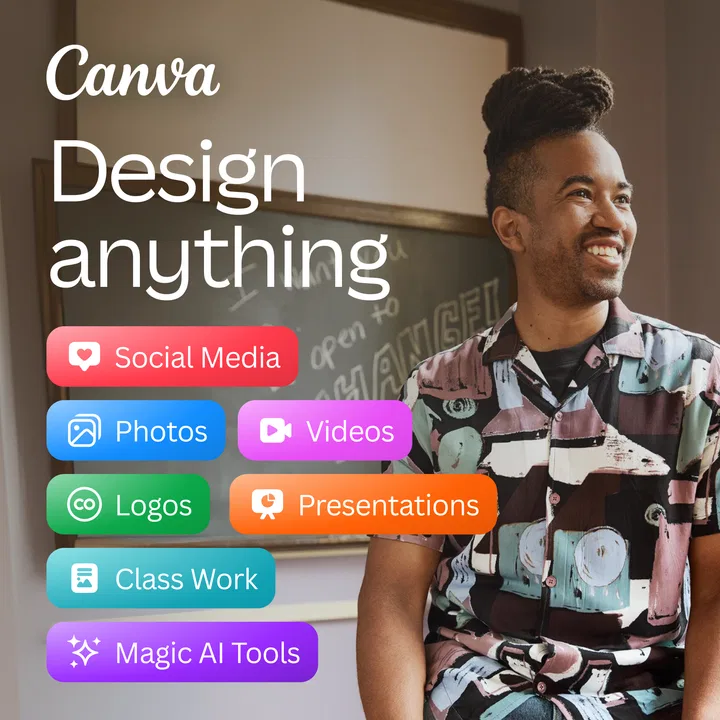
Canva: AI Photo & Video Editor
- 4.8
- Rating
- 500.00M
- Installs
- Free
- Price

 Analysis by App-foxy
I reach for Canva when I need something that looks finished but do not want to begin with a blank canvas. After spending time with its templates, photo tools, video editing controls, logos, collages, and social layouts, I found an app that is much more useful than a simple poster maker. It feels like a compact design workspace for people who think visually but do not necessarily know professional design software.
The important detail is that it is not equally convenient in every situation. Canva is strongest when I have a stable connection, a clear idea of what I want to make, and enough time to choose a suitable starting point. It is less comfortable when I am trying to work quickly with unreliable mobile data or when I need absolute control over every pixel. That balance shaped my experience more than the impressive range of tools did.
What the app feels like in everyday use
Canva is an art and design app from Canva, available free of charge with optional in-app purchases ranging from $1.49 to $300.00 per item. It is rated for Everyone 10+, runs on Android versions beginning with 6.0, and the current version is 2.342.0. It first appeared on November 27, 2017, and its popularity is easy to understand: the app has passed 500 million installs and holds a 4.8 average from around 24 million ratings.
In-Depth Coverage of Canva: AI Photo & Video Editor
I would describe the experience as guided design rather than pure drawing. You select a format, browse layouts, replace text or images, adjust the visual details, and export the result. That approach is especially helpful when the real problem is not “How do I use a design program?” but “How do I make this announcement, invitation, thumbnail, menu, or profile graphic look presentable before I lose patience?”
The template-first workflow is also where Canva differs from many traditional editing apps. A conventional photo editor usually starts with an image and gives me tools to correct or decorate it. Canva starts with the intended result. That distinction matters. If I am preparing a simple event graphic, I can think about the message and the audience instead of calculating dimensions, margins, and hierarchy from the beginning.
At the same time, templates can tempt me into making something that looks polished but not particularly personal. My best results came from treating a template as a skeleton rather than a finished answer. I changed the typeface, removed unnecessary decorative elements, adjusted spacing, and used fewer colors than the original design. Those small edits made the result feel deliberate instead of copied.
Why the mobile layout works for quick projects
The phone interface makes sense for short creative sessions. I can start with a format suited to a social post, presentation, collage, logo, or video, then make changes with taps and familiar gestures. This is convenient when an idea arrives away from a desk. I have found it particularly useful for turning a handful of photographs into a coherent visual rather than sending them as an unorganized group.
The trade-off is precision. On a phone, small text boxes and layered elements can be fiddly, especially when several objects overlap. I sometimes needed to zoom in repeatedly to select the correct item. A larger screen is better for detailed alignment, long text, or a design with many layers. Canva remains practical on mobile, but “practical” does not mean that the phone is always the best place to finish a complex composition.
A useful habit is to simplify before polishing. I now decide which elements are essential, lock my visual direction early, and avoid adding decorative objects merely because they are available. This reduces the amount of tiny repositioning that mobile editing demands. It also improves the final design, since crowded layouts are one of the easiest ways to make a quick project look amateurish.
Connectivity changes the rhythm more than the feature list
Canva feels most fluid when the connection is dependable. Browsing templates, loading visual assets, moving between design areas, and preparing media can all become less comfortable when the network is slow. The issue is not just waiting for a screen to respond. A disrupted connection breaks the creative rhythm, and that matters when I am comparing several visual directions or trying to capture a fleeting idea.
I noticed this most clearly in mobile situations: sitting in a waiting room, working from a crowded café, or trying to prepare a last-minute graphic while moving between places. The app is still appealing in those moments because the phone is always nearby, but the experience becomes more cautious. I avoid opening too many alternatives, keep the project simpler, and save important source images on the device before starting.
For a realistic example, imagine that I need a birthday invitation while traveling. I can choose a suitable layout, add the location and time, replace the sample image, and create a shareable result without needing design training. If the connection becomes unstable during that process, the most sensible approach is not to keep tapping every control. I would pause, let the current screen settle, and avoid closing the project until I am confident that the latest changes are preserved.
This is one reason I would not call Canva my first choice for emergency editing in a place where connectivity is uncertain. A basic editor that already has the required photos and tools available locally may be less ambitious, but it can be more dependable for a small, immediate adjustment. Canva wins when I want options and structure; a simpler local tool can win when I want certainty.
Working with photos, collages, and video
The photo side is approachable because the app connects image editing with composition. I am not limited to correcting a picture; I can place it inside a collage, combine it with text, or build it into a larger visual message. That makes it useful for family projects, small sellers, students, community groups, and anyone preparing content that needs context around the image.
Collages are a good example of Canva’s practical advantage. Instead of manually calculating equal spaces between pictures, I can begin with an arrangement that already has a visual rhythm. I still need to check cropping carefully, because an attractive frame can cut off a face or the important part of a product. The app saves time on structure, but it does not replace judgment about which part of a photograph deserves attention.
The video tools are helpful for short, designed pieces rather than serious editing sessions. I can work with a visual background, combine clips or images with text, and create something intended for quick viewing. For a short announcement or a simple montage, that is enough. For a longer project requiring detailed sound mixing, highly specific timing, or frame-by-frame control, I would prefer a dedicated video editor.
That distinction is important for expectations. Canva’s strength is the connection between visual identity and media. A video can share the same colors, typography, and layout language as a poster or social graphic. A specialist editor may offer deeper control, but it may not make it as easy to keep several types of content visually consistent.
You May Also Like

 AccuWeather: Weather Radar
AccuWeather Review: A Quick, Clear Forecast for Everyday Decisions
For everyday plans, the best forecast is the one you can understand quickly. AccuWeather makes rain timing, radar, and local conditions easy to act on, with a few trade-offs.

 Hill Climb Racing
Why Hill Climb Racing Still Turns Crashes Into One More Run
A tiny car, a bumpy hill and one more upgrade: Hill Climb Racing keeps resurfacing because its simple chaos makes every near-miss feel personal.

 AliExpress - Shopping App
AliExpress Makes Global Shopping Feel Personal, but Shoppers Bear the Risk
AliExpress turns a global marketplace into a pocket-sized discovery engine. Its reach is useful, its shopping loop compelling, and its trade-offs easy to miss.

 Lords Mobile: Kingdom Wars
Lords Mobile Is a Kingdom-Building Routine, Not a Quick Match
A case-by-case verdict on the building, battles, device demands, and social commitments that make Lords Mobile rewarding for some players and exhausting for others.

 Block Blast!
Block Blast! Shows How Much a Puzzle Game Can Leave Out
A quiet grid game shows why puzzle players increasingly value instant clarity, repeatable skill and low-pressure play—and where the genre still needs to catch up.

 Family Space
Family Space Review: A Shared Routine That Makes Family Life Easier
A parenting app earns its place not by adding more noise, but by making everyday coordination easier. Family Space gets that balance mostly right.
More From Our News Desk
View All News


Small workflows that make a noticeable difference
My most useful discovery was that the fastest workflow is not to browse endlessly. I first decide the purpose, audience, and one main message. Then I choose a format and search visually for a layout with the right structure. I replace the sample content before spending time on decoration. This prevents me from becoming attached to a template whose proportions do not suit the real material.
Another effective technique is to create a small visual rule before editing: one dominant color, one supporting color, and a restrained text hierarchy. Canva makes it easy to add more elements, but restraint is what makes a design readable on a small screen. I also check the design at the size where people will actually see it. Text that looks comfortable while editing may become too small once the graphic is viewed inside a busy social feed.
For logos, I would begin with recognition rather than ornament. A simple mark that remains clear at a small size is more useful than a detailed design that only looks good when enlarged. Canva can help me explore directions quickly, but I would not assume that a template-based logo is automatically distinctive. If the identity is central to a business, I would use the app for early concepts and then consider a more specialized design process.
With video backgrounds, I pay attention to contrast before animation. Moving imagery behind text can look attractive in the editor but make the message difficult to read in motion. I would rather choose a calmer background and readable typography than add effects that compete with the information. This is a small decision, but it is one of the clearest differences between a design that merely moves and one that communicates.
What happens when a project goes wrong
Creative apps are judged not only by how they help me build something, but also by how calmly they let me recover from mistakes. Canva encourages experimentation because I can try different layouts and replace elements without rebuilding the whole idea. That lowers the cost of trying an unusual arrangement, which is valuable for beginners.
Still, I would not treat any connected editing session as a place for careless closing or repeated tapping. When a project matters, I work in deliberate stages: make a group of changes, wait for the interface to respond, review the result, and only then move on. If a network interruption occurs, I stop making further edits until the app behaves normally again. This is less exciting than rushing, but it reduces confusion about which change was accepted.
I also keep original photographs and source clips separate from the design project. That way, a layout experiment never becomes the only copy of an important image. This is good practice with any editor, but it matters especially on a phone, where storage, connection quality, and app switching can all influence the workflow.
When an export does not look right, I check the design itself before blaming the tool. Cropped images, low-contrast text, and crowded spacing often become more obvious after export. I review the result as a viewer would see it, not only inside the editing canvas. For video, I watch the complete short piece once without stopping. A transition that seems fine while editing may feel too abrupt when experienced from beginning to end.
Using it without wasting mobile data
Canva can encourage browsing because there are so many visual directions to explore. That is enjoyable on a reliable connection, but it can consume time and data when I am using a mobile plan. My approach is to decide the project type first, gather the photos I actually intend to use, and avoid opening every alternative template that catches my eye.
I also prefer doing exploratory work when I have a stronger connection, then reserving mobile sessions for focused edits. This separates inspiration from production. It is a surprisingly effective habit: the app feels faster because I am no longer asking it to search, compare, import, and refine at the same time.
Large media deserves particular care. Video backgrounds and multiple photographs can make a project heavier than a simple text graphic. I would prepare only the clips needed for the final idea and avoid repeatedly importing versions that I will later discard. Keeping the project visually simple also helps with readability, editing speed, and the amount of content I need to handle.
People who are sensitive to data use should also think about where they browse. Canva is more enjoyable as a connected design environment than as a tool I open casually for endless scrolling. If I already know the message and format, I can get real value from a short session. If I am only browsing without a goal, the time and connection costs rise quickly.
Who will appreciate Canva most
I would recommend it to someone who needs professional-looking communication without a professional design background. It suits students preparing presentations, families making invitations, small organizations creating announcements, and independent sellers who need consistent visual material. The combination of templates, photo composition, logos, collages, and video-oriented design makes it broad enough for many everyday projects.
It is also a good fit for people who work in bursts. I can begin an idea on a phone, make a rough version during a spare moment, and return later when I have more time to refine it. That flexibility is more valuable than a long list of tools if my actual challenge is finding a workable design before the opportunity passes.
I would be more cautious recommending it to a professional illustrator who wants deep brush control, a photographer seeking advanced raw-image adjustments, or a video editor who needs a detailed timeline. Those users may find Canva’s guided structure restrictive. The same simplicity that helps a beginner can feel like a ceiling to someone who already knows exactly how every element should behave.
I would also skip it for a tiny one-off task if opening a template-based design workspace feels excessive. Cropping a picture, adding a basic caption, or making a quick color correction may be faster in the phone’s built-in tools. Canva becomes worthwhile when the result needs arrangement, consistency, visual hierarchy, or a more finished presentation.
How it compares with familiar alternatives
Compared with a standard gallery editor, Canva offers much more help with layout and communication. The gallery editor is usually quicker for a single photo, while Canva is better when the image is only one part of a poster, collage, invitation, or branded visual. I would choose the simpler option for speed and Canva for structure.
Compared with a professional desktop design program, Canva is easier to begin and faster for repeatable content. Desktop software generally gives more precise control over layers, paths, typography, and output settings. Canva’s advantage is that I can reach a credible result without building every component from scratch. The choice depends on whether control or momentum matters more.
Compared with a dedicated video editor, Canva is more comfortable for designs where text, images, and visual identity are central. A specialist editor is the better choice for complex timing, detailed audio work, or elaborate effects. I see Canva’s video tools as part of a broader communication workflow, not as a complete replacement for every editing program.
The connectivity question also changes this comparison. A lightweight local editor may be preferable for a quick adjustment in a weak-signal environment. Canva is more rewarding when I can browse, compare, and build within its wider design system. In other words, its breadth creates value, but that breadth is most comfortable when the network is cooperating.
My final view after using it
Canva succeeds because it makes design decisions less intimidating. I do not need to know the vocabulary of professional layout before making a useful poster or social graphic. The app gives me a starting point, enough flexibility to personalize it, and a practical path from idea to finished visual.
Its weaknesses are connected to the same design. Template-driven work can produce familiar-looking results, mobile editing can become cramped, and a poor connection can interrupt browsing and media-heavy projects. The optional purchases also mean that the free starting point may not contain every asset or workflow I want, so I would check the editing path before investing time in a particular visual direction.
My recommendation is straightforward: use Canva when you need a polished, structured result and want to work from a phone without learning a complex professional suite. Prepare your source material first, keep layouts simple, protect original files, and do the browsing-heavy part on a dependable connection. If you need deep artistic control or must edit reliably in a disconnected setting, choose a more specialized or locally focused tool instead.
For my own everyday use, the app earns its place because it turns vague design tasks into manageable steps. I would not use it for every image or every video, but for invitations, announcements, collages, branded posts, and quick visual projects, it offers a strong balance of guidance and control. The best results come when I treat it as a thoughtful design assistant rather than a button that automatically makes every project good.
FAQs for Canva: AI Photo & Video Editor
01What features does Canva: AI Photo & Video Editor offer?
Canva offers a comprehensive suite of tools for both photo and video editing. Users can access customizable templates, an extensive library of stock images and videos, and a variety of filters and effects. Additionally, the app includes AI-driven features such as background removal and smart suggestions to enhance creativity.
02Is Canva: AI Photo & Video Editor suitable for beginners?
Absolutely! Canva is designed to be user-friendly and accessible to everyone, from beginners to experienced designers. The intuitive interface, along with guided tutorials and easy-to-use templates, ensures that even those new to design can produce high-quality content with minimal effort.
03Does Canva require an internet connection to function?
While Canva offers some offline capabilities, such as accessing previously downloaded designs, most features—especially those involving the template library and collaborative functions—require an active internet connection. This ensures users have access to the latest updates and resources available on the platform.
04Are there any costs associated with using Canva: AI Photo & Video Editor?
Canva offers a free version with a wide range of features suitable for basic design needs. However, for advanced functionalities like premium templates, a broader stock library, and additional AI tools, a subscription to Canva Pro or Canva for Enterprise is required. These plans come with monthly or annual fees.
05Can I collaborate with others using Canva: AI Photo & Video Editor?
Yes, Canva supports collaboration, making it perfect for team projects. Users can share designs and work simultaneously with others in real-time. The app allows for comments and feedback, ensuring a smooth collaborative process. This feature is especially beneficial for businesses and creative teams.
Pros
- User-friendly interface for easy editing.
- Wide range of templates available.
- Supports collaboration in real-time.
- Offers a variety of design elements.
- Cross-platform accessibility.
Cons
- Limited features in free version.
- Some tools require learning curve.
- Occasional app crashes reported.
- Requires internet for full functionality.
- Subscription can be pricey.

Canva: AI Photo & Video Editor
Gallery